

In this article, we explain how to configure your shipping zones, select the available methods, define delivery times and review the logistics classes linked to your products.
- What you need to configure in your shipping settings
- Before you start
- How to access shipping charges
- How to create a shipping zone
- How to select shipping methods and delivery times
- How to configure shipping charges
- Logistics classes
- Specific methods for household appliances and white goods
- How to add new delivery times
- Summary
Shipping configuration defines how your offers are shown to customers and which delivery conditions apply in each territory.
- Shipping zones: territories where you can ship orders.
- Shipping methods: services or delivery times you will offer.
- Shipping charges: shipping cost by zone, method or order amount.
- Logistics classes: classification that must be assigned to your products so the system applies the corresponding shipping time.
Before creating or changing your shipping zones, review these points:
- Check that the corresponding sales channel is active.
- Make sure you can prepare and ship orders to the selected territory.
- Select only the shipping methods that you can actually meet.
- Configure shipping costs and conditions according to your operations.
- Check that free shipping from €50 is correctly configured where applicable.
To configure your shipping zones, methods and costs, go to:
- Settings > Shipping > Shipping charges
- Direct URL: access shipping charges.
From this screen, you can add shipping zones, edit methods, select delivery times and configure the associated charges.
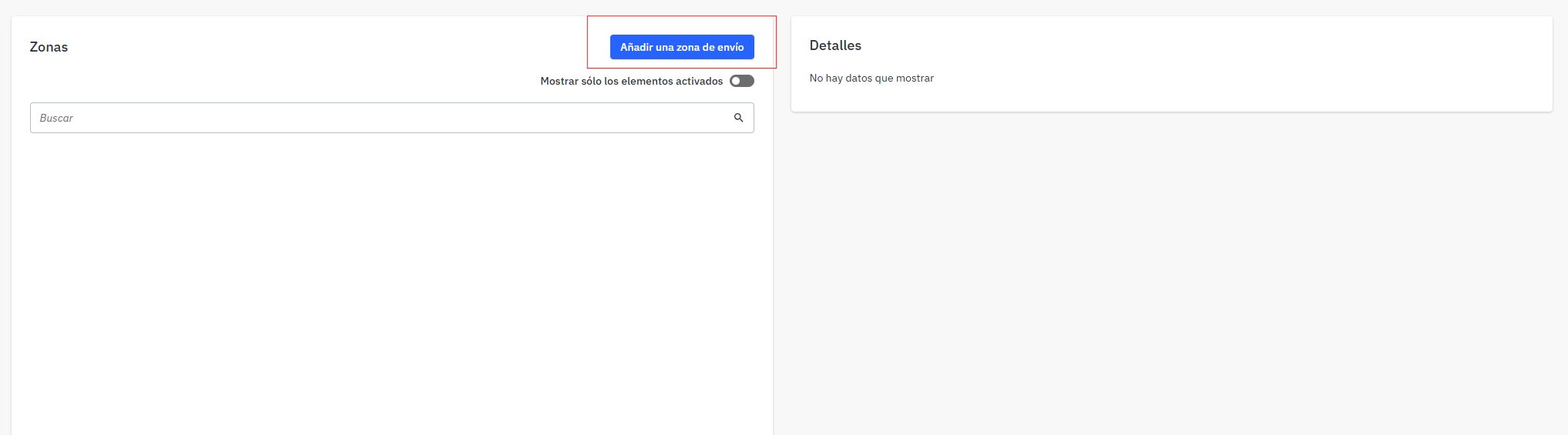
If this is the first time you configure shipping, you must create a shipping zone.
- Select Add a shipping zone.
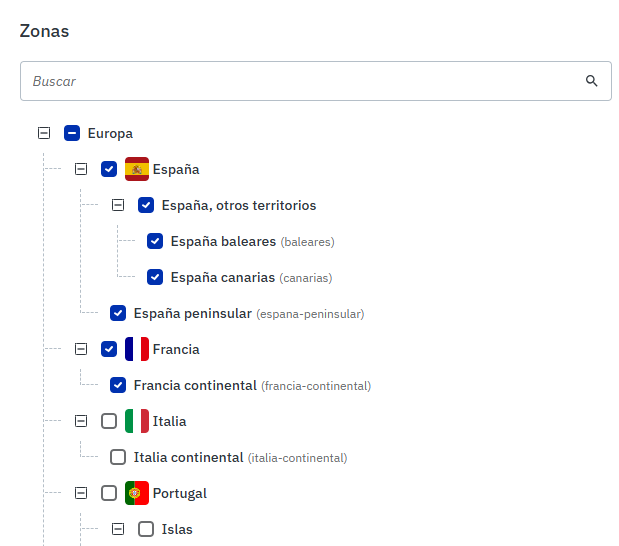
- Choose the territory or territories where you want to sell.
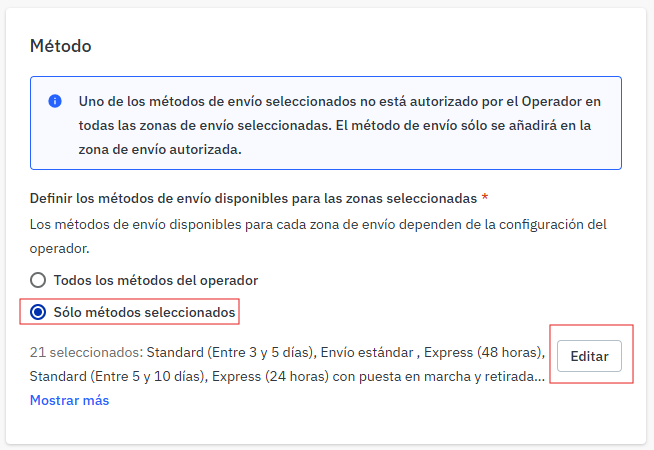
- Continue to the Method section.
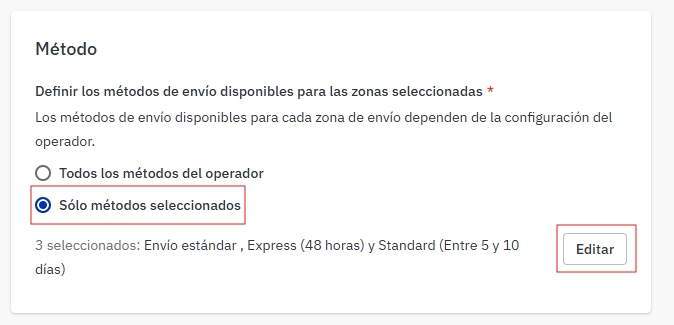
- Select Selected methods only.
- Select Edit to choose the available methods.
|
|
|
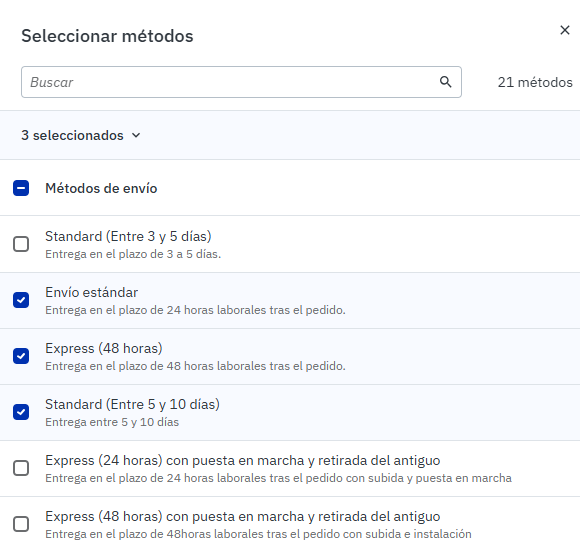
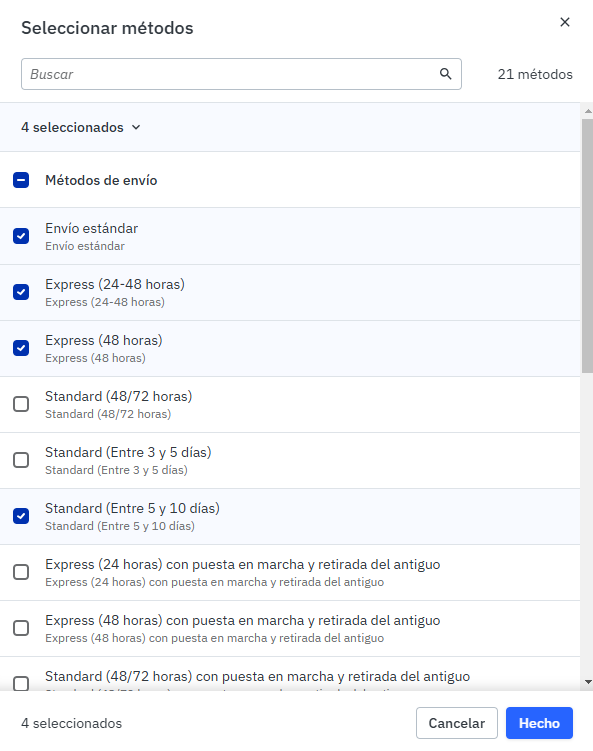
Select the delivery times you will offer and click Done to confirm.
Choose only the delivery times you can consistently meet. These times will be visible to customers and will affect the delivery promise of your offers.
|
Within the shipping zone, under Order shipping amount, you can define how the shipping cost will be calculated.
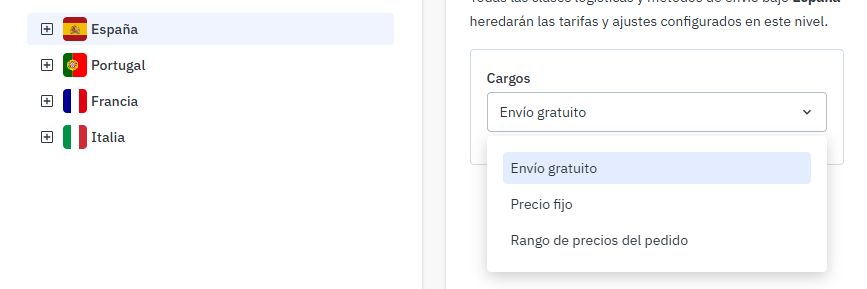
When you select a zone, you will see these options:
- Free shipping: shipping will cost €0 for that configuration.
- Fixed price: lets you configure a base cost and an additional cost if the customer buys more than one unit.
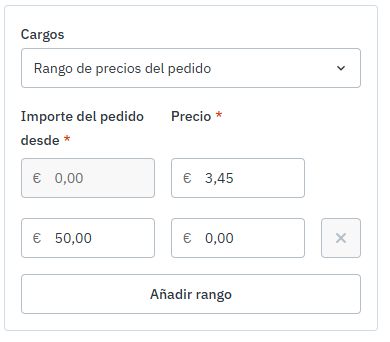
- Order price range: lets you define a cost based on the order amount. This is the right option to configure free shipping from €50.
|
To comply with the free shipping rule from €50, configure the range so that:
- Orders below €50 have the relevant shipping cost.
- Orders equal to or above €50 have a shipping cost of €0.
|
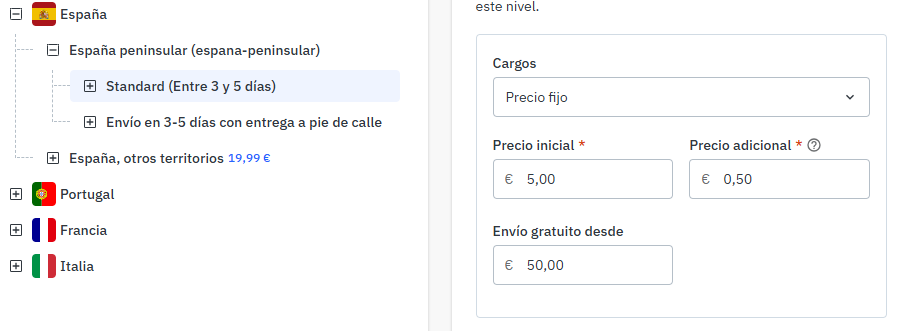
You can also configure free shipping from the shipping method itself. This option can be simpler if you work with a few methods, but you will need to repeat it if you have several methods configured.
|
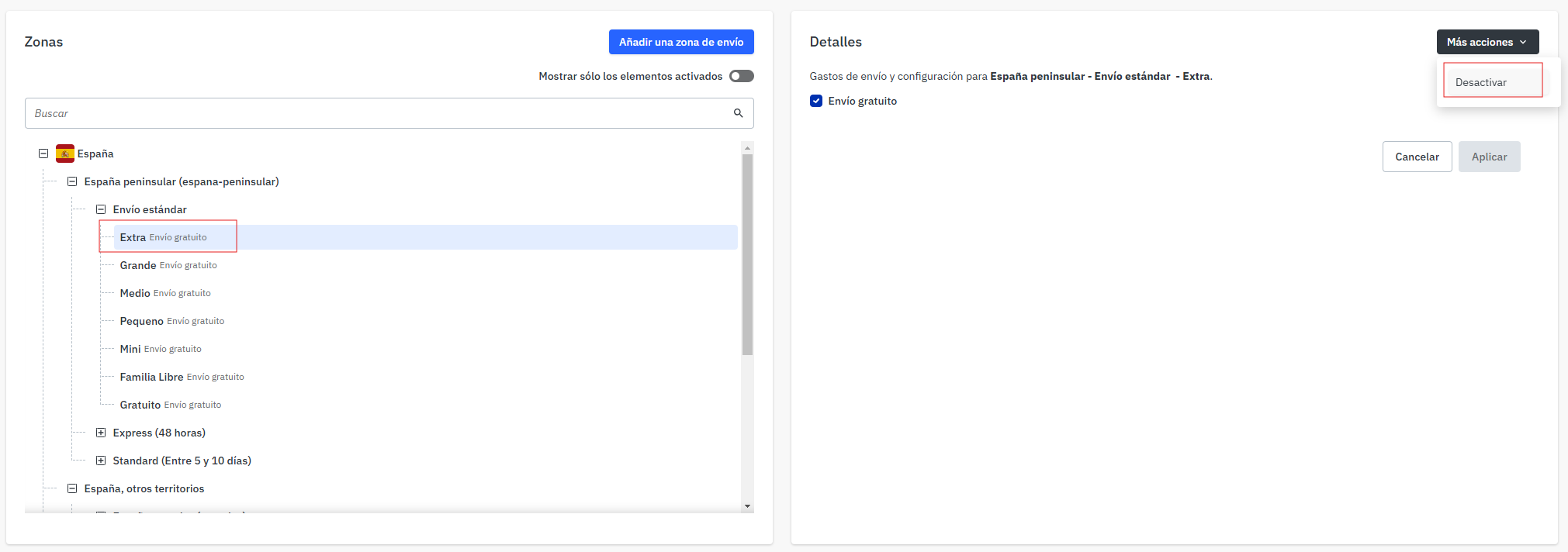
Each shipping method includes associated logistics classes. When you synchronise your catalogue, you must assign a logistics class to each product.
The logistics class helps define which shipping time applies to each product, according to your configuration.
- Disable logistics classes that you are not going to use.
- Do not delete logistics classes unless you are sure of the impact.
- Check that each product has the correct logistics class assigned.
|
Some household appliance and white goods categories have specific shipping methods. These methods may include additional services such as installation, delivery upstairs, kerbside delivery or removal of the old appliance.
| Service type | Examples of methods |
|---|---|
| With installation and removal of the old appliance | Express 24 h, Express 48 h, Standard 48/72 h, 3-5 days, 5-10 days |
| With kerbside delivery | Express 24 h, Express 48 h, Standard 48/72 h, 3-5 days, 5-10 days |
| With delivery upstairs and removal of the old appliance | 48/72 h, 3-5 days |
| 24 h delivery | Specific method for 24 h delivery where available |
- In white goods categories, you can apply charges only if you include extra services, such as installation or delivery upstairs.
- You must keep a free kerbside delivery option when required by the applicable shipping policy.
- Removal of the old appliance is mandatory and free for the customer.
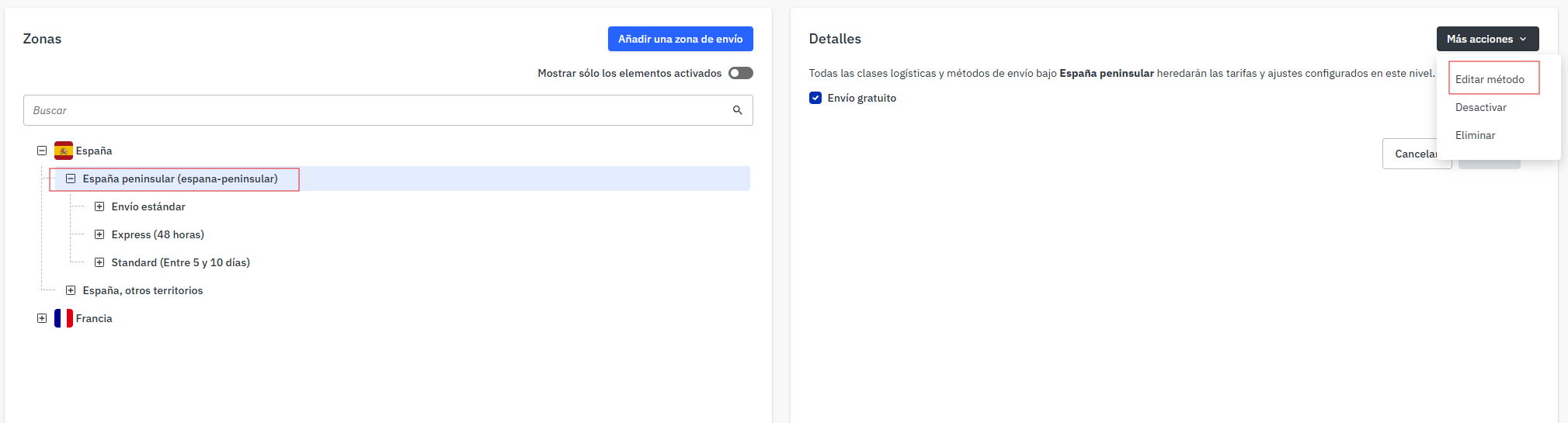
If your shipping settings are already configured and you want to add new delivery times, edit the corresponding shipping method.
- Select the corresponding territory.
- Select More actions.
- Select Edit method.
- Select Selected methods only.
- Select Edit.
- Select the new delivery time.
- Select Done.
- Select Save.
|
|
|
- Access it from Settings > Shipping > Shipping charges: there you can create zones, select methods and configure charges.
- Configure only the methods you can meet: delivery times will be visible to customers.
- Free shipping from €50 is mandatory: it applies to all countries, excluding islands.
- Use Order price range: it is the right option to configure free shipping from €50 by zone.
- You can also configure it from the shipping method: it is simpler if you have a few methods.
- Do not delete logistics classes if it is not necessary: disable them to avoid restarting the territory configuration.
- To sell in other territories: also review sales channels and the specific shipping configuration.