

This article explains how to manage incidents from the platform, how to review their opening and closing reasons, and what you should check before marking an incident as resolved.
- Before you start
- Access the incident dashboard
- Incident opening reasons
- Communication within an incident
- Marking messages
- How to issue a refund
- When to mark an incident as resolved
- Incident closing reasons
- What happens after closure
- Summary
Before managing an incident, review the applicable after-sales conditions and make sure that you always respond through the platform.
- Location: Customer service > Incidents.
- Direct URL:access the incident dashboard.
- Reference article:After-sales conditions.
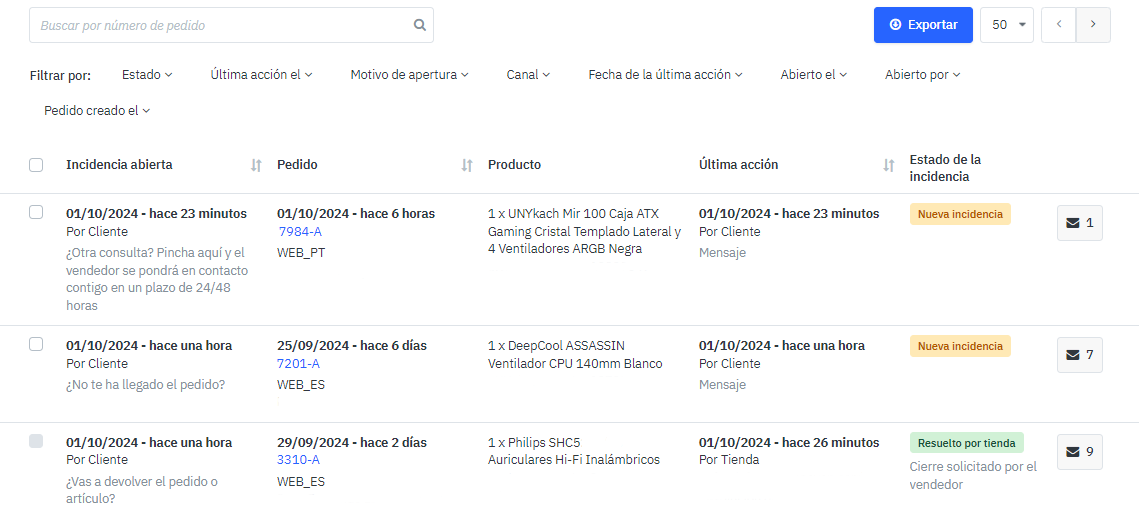
The incident dashboard shows the list of open cases. Use the available filters to locate and prioritise incidents.
You can filter incidents by reason, date or opening day, among other criteria.
|
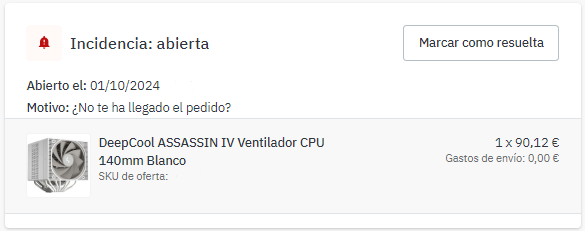
To open the incident details, click the order number from the dashboard. The order page shows the reason for which the incident was opened.
|
The available opening reasons are:
| Reason | What it means | MQC statistics |
|---|---|---|
| I have not received the order | The customer states that the order has not been delivered. | May be included. |
| I did not receive the correct item | The item received does not match the item ordered. | May be included. |
| I received an incomplete order or item | A product, component or accessory is missing. | May be included. |
| I received a damaged item | The customer reports damage to the product received. | May be included. |
| Invoice management | Questions or requests related to the order invoice. | Excluded from statistics. |
| I want to return the order or an item | The customer requests a full or partial return. | Excluded from statistics. |
| Product not working correctly: Repair | The customer reports a malfunction and requests a repair. | May be included. |
| Product not working correctly: Replacement or refund | The customer reports a malfunction and requests a replacement or refund. | May be included. |
| Another question? | Questions that do not match any of the previous reasons. | Excluded from statistics. |
The conversation appears in the right-hand panel, where you can send new messages.
Select the correct recipient:
- Customer: use this option to reply directly to the customer.
- Operator: use this option only when the Customer Experience team has previously contacted you within the incident.
- Customer and operator: the message will be visible to both the customer and PcComponentes. Use it when Customer Experience is already involved.
At the end of each conversation, you will find the No response required option.
Use it only when the case has already been resolved and the customer has sent a message that does not require a reply, such as a thank-you or farewell.
To open a new conversation within the same incident, select Start a conversation, choose the recipient and add the relevant subject.
If resolving the incident requires a refund, use the Refund option at the top of the order page.
- Full refund: refunds the full order amount, including shipping costs.
- Partial refund: refunds only part of the order, a specific item or a particular amount.
See the full process in How to issue a refund.
Select Mark as resolved only after completing all required actions.
- You have replied to the customer.
- You have provided a clear solution.
- You have processed the relevant refund, replacement or repair.
- No documentation or action remains pending.
- The outcome has been recorded in the message thread.
The closing reason indicates how the case ended. Not every reason is available to every participant. In this table, Operator refers to PcComponentes.
| Closing reason | Who can select it | What it means |
|---|---|---|
| The customer did not respond | Operator and shop. | Management could not continue because the customer did not respond. |
| The customer finally received the order | Customer, operator and shop. | The order previously reported as undelivered was finally delivered. |
| The item received is correct | Customer and operator. | It has been confirmed that the item received matches the item ordered. |
| Replacement sent by the seller received | Customer and operator. | The customer has received the replacement arranged by the shop. |
| Agreement reached with the seller | Customer and operator. | The customer and the shop have agreed on a resolution. |
| Solution found by PcComponentes | Operator. | PcComponentes intervened and provided the final solution. |
| Solution provided by the seller | Operator. | The operator confirms that the shop provided an appropriate solution. |
| Other | Customer and operator. | The outcome does not match any of the previous reasons. |
| Closure requested by the seller | Shop. | The shop requests closure after completing the management and recording the outcome in the thread. |
After being marked as resolved, the incident will close automatically after 5 business days without activity. During this period, the customer may still reply.
Closed incidents may take between 72 and 96 hours to be updated on the platform where applicable.
- Reply on time: respond to messages within 24 hours.
- Review the opening reason: check the reason and full history before taking action.
- Some reasons are excluded: Mirakl identifies opening reasons that are not included in MQC statistics.
- Use recipients correctly: use Operator only when Customer Experience has started the conversation.
- Document the solution: record the outcome before marking the incident as resolved.
- Select the actual closing reason: do not use a reason to alter metrics.
- Do not close too early: make sure that no action remains pending.
- Review refunds: enter the correct reason and check the net amount and taxes.