

In this article, we explain how to complete your shop’s billing information in Mirakl. This information is required to keep your account correctly configured and to receive your official invoices.
- What billing information is used for
- How to access Billing information
- How to edit billing information
- What information you need to complete
- Details you cannot change directly
- Summary
Billing information identifies your shop for tax purposes within the Marketplace.
This information is used to issue official invoices and to keep your seller account correctly configured.
For this reason, the details must match your company or professional activity’s tax information.
To view or complete your billing information, go to:
- Location: Settings > Shop > Billing information
- Direct URL: access Billing information
- Go to Settings > Shop > Billing information.
- Select Edit.
- Complete all available fields.
- Check that the information matches your tax details.
- Select Save to apply the changes.
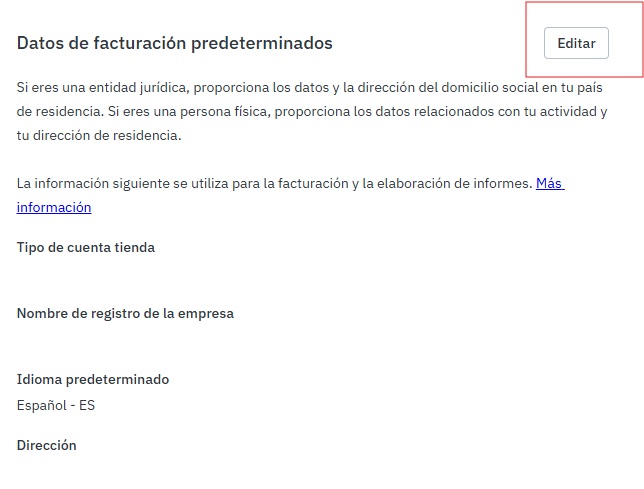
On the edit screen, complete the tax and billing information shown in Mirakl.
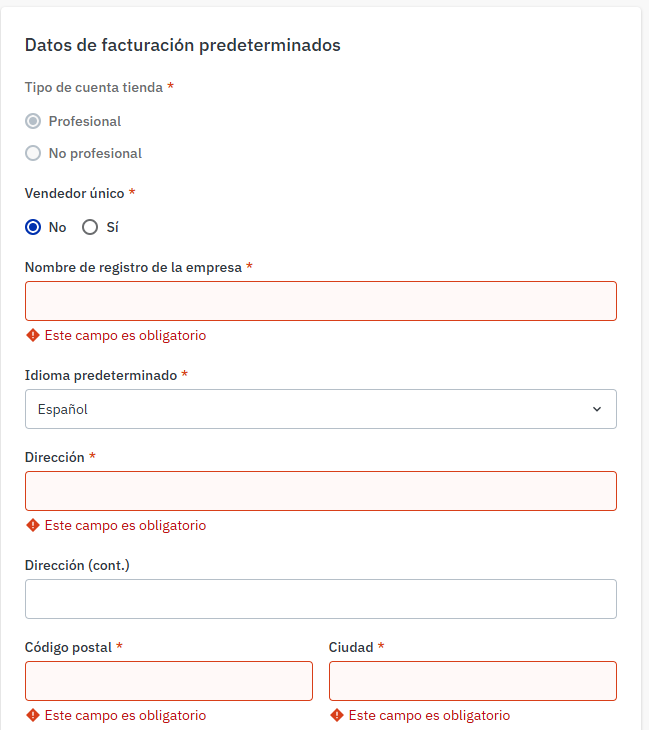
| Field | What you need to enter |
|---|---|
| Shop account type | Indicate whether the account corresponds to a professional or non-professional activity, according to your tax situation. |
| Single seller | Select the option that matches the legal structure of your activity. |
| Company registration name | Legal or tax name of the company or professional activity. |
| Default language | Main language associated with the account for platform communications or information. |
| Address | Tax or registered address of the company. |
| Address line 2 | Additional address information, if applicable. |
| Phone number | Contact phone number associated with the company or shop. |
| Postal code | Postal code of the tax or registered address. |
| City | City of the tax or registered address. |
| Province | Province, region or state corresponding to the address entered. |
| Country | Country of registration or tax residence of the company. |
| Tax ID | Main tax number of the company or activity. It must match the shop’s legal entity. |
| Country of tax identification number | Country that issued the tax identification number entered. |
| Tax identification number | Tax identification number of the company or professional activity. |
| VAT number | VAT identification number for intra-community VAT purposes, if applicable. |
| Email address | Tax or administrative contact email address. |
| Legal form | Legal form of the company or activity, according to the corresponding tax documentation. |
| Share capital | Company share capital, if applicable according to its legal form. |
| Is the company being liquidated? | Indicate whether the company is in liquidation. |
| Company and trade registration city | City of the commercial register or equivalent register, if applicable. |
| Business activity code | Economic or commercial activity code associated with the company, if applicable. |
You cannot change the shop’s Tax ID to a different one from Mirakl.
If you need to operate with another Tax ID, you must create a new shop account, as this is a different legal entity.
The legal form should also not be changed without first checking whether it affects the shop’s legal entity.
- Billing information is required: it identifies your shop for tax purposes and allows official invoices to be issued correctly.
- You must complete it from Mirakl: go to Settings > Shop > Billing information.
- Select Edit to add the information: complete all fields and save the changes.
- Complete all available fields: even if they are not marked as mandatory.
- You cannot change the Tax ID to a different one: if you need to operate with another legal entity, you must create a new shop account.