

In this article, we explain how to complete your bank account details in Mirakl and what you need to do if you need to change the account after it has been configured.
- What bank account details are used for
- How to access Bank account details
- What fields you need to complete
- What to do if you need to change the bank account
- Relationship with KYC
- Summary
Bank account details identify the account where payments related to your activity as a seller will be managed.
This information must match the bank documentation provided during the verification process to avoid validation errors or payment issues.
To view or complete your shop’s bank information, go to:
- Location: Settings > Shop > Bank account details
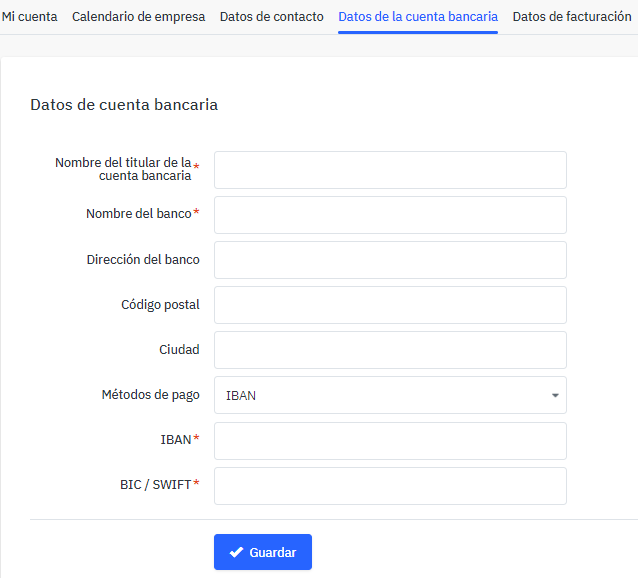
Complete the bank fields with the official information from your bank.
| Field | What you need to enter |
|---|---|
| Bank account holder name | The company’s legal name or the account holder name. It must match the bank documentation provided. |
| Bank name | The name of the bank to which the account belongs. |
| Bank address | The address of the bank. |
| Postal code | The postal code of the bank. |
| City | The city where the bank is located. |
| Payment method | Select IBAN. |
| IBAN | The account number in IBAN format. It must exactly match the documentation provided. |
| BIC/SWIFT | The bank’s BIC or SWIFT code. This code is provided by your bank. |
If you have already configured your bank account and need to change the account number, you will not be able to modify it directly from your seller account.
To request the change, contact your account manager. The change must be managed manually.
After a bank account change, you must access the Adyen portal and provide the corresponding documentation so the new bank information can be validated.
If you do not provide the documentation requested in Adyen, the new information cannot be validated and this may affect the unblocking or management of your payments.
For more information about the verification process, see the KYC article.
- You can enter the bank account the first time: go to Settings > Shop > Bank account details.
- Select IBAN as the payment method: the IBAN must match the bank documentation provided.
- Once configured, you cannot directly change the account number: contact your account manager to request the change.
- After the change, you must update KYC: access Adyen and provide the requested documentation.
- If the documentation does not match: validation may fail and affect payment management.