

Once a product has been created, you cannot modify its information directly from your seller account. If you need to correct or update the product page, request the change from the Cataloguing team.
Changes should be used to correct errors or update official product information, not to turn an existing reference into a different product.
- Changes you can request
- Changes you cannot request
- How to request a change
- Where to find the EAN
- What happens next
- Update or replace product images.
- Add or correct information in the description.
- Correct errors in product data.
- Review technical information or incorrect specifications.
- Update official manufacturer information, provided that the product EAN remains unchanged.
This content follows a specific process. See How to add enriched content (A+) to a product page. In this case, contact Cataloguing and copy your account manager.
A product modification cannot be used to change the nature of the product, for example:
- Changing the EAN.
- Changing the brand.
- Changing the main model.
- Turning the page into a different product or reference.
In these cases, you need to create a new product.
Send an email to catalogacion-marketplace@pccomponentes.com and include:
- Product EAN.
- Field you want to change.
- The current information, if incorrect.
- The new information that should appear.
- Images, technical documentation or official manufacturer information where required.
Suggested subject:
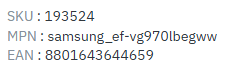
If you have an offer associated with the product, go to Price and stock > Offers and select the item. The product details include its EAN.
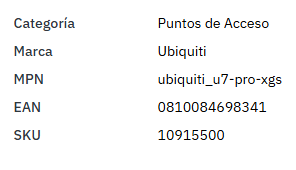
If you do not yet have an offer, go to Price and stock > Offers > Add an offer and search for the product by name. You can check the EAN in the search results before adding the offer.
The Cataloguing team will review your request and confirm whether the change can be applied.
If approved, you will receive confirmation once the product information has been updated.