

You can create several products at once using a template generated by Mirakl according to the categories you need.
This guide explains how to generate the template, complete it, import it and review the result.
- Go to Import products
- Generate the template
- Select the categories
- Complete the template
- Import the file
- Review the import result
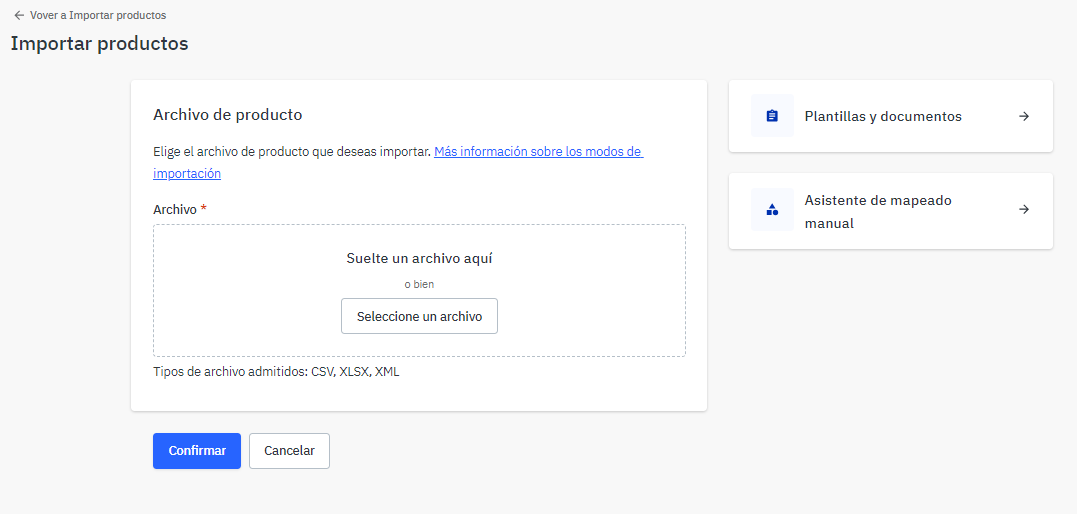
In Mirakl, go to Catalog > Import products.
You can also access Import products directly.
- Select Templates and documents in the right-hand panel.
- Select Generate product template.
- Under Template type, select Products.
- Under Select attribute requirement level, select All (mandatory, recommended optional).
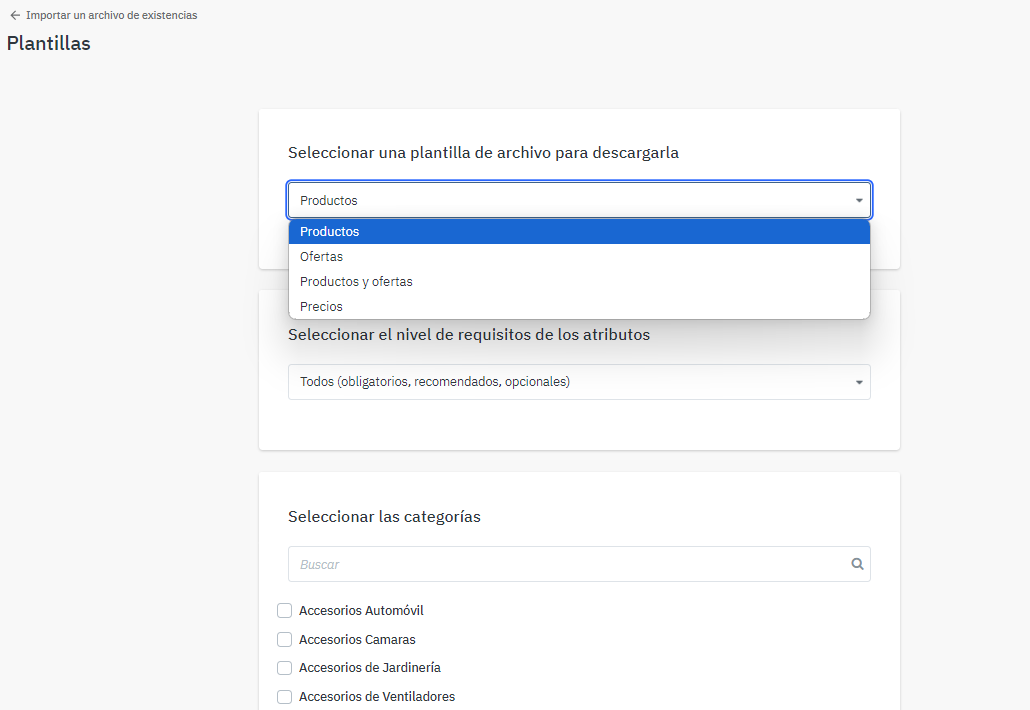
- Go to Select categories.
- Search for categories manually or browse the product families.
- Select all the categories you need for the products you are going to import.
- Select Generate template.
- Download the file when the option becomes available on the same screen.
When you open the template, select the appropriate category for each product in column A.
The cells automatically change colour according to the selected category:
- Salmon: mandatory fields.
- Grey: incompatible fields that should not be completed.
- White: optional fields that you can complete when the information is available.
For guidance on titles, identifiers, descriptions, images, attributes and logistics data, see Creating a perfect product sheet.
Prepare the HTML and images in advance by following How to add enriched content (A+) to a product page. When submitting the file, tell the Cataloguing team which references contain this content.
- Save the template once all products are complete.
- Return to Catalog > Import products.
- Upload the file using the corresponding option.
- Complete the import by following the instructions in Mirakl.
After importing the file, check its status in the import history.
Access it from Catalog in Mirakl or directly from Product imports.
From this section you can:
- Check the status of each import.
- Select View details for additional information.
- Download the error report when the import contains rejected products or incorrect fields.