

Correctly uploading the invoices for your orders is a mandatory requirement. In this article, we explain step-by-step how to do it manually from the platform itself.
|
Important:
|
Access the corresponding order.
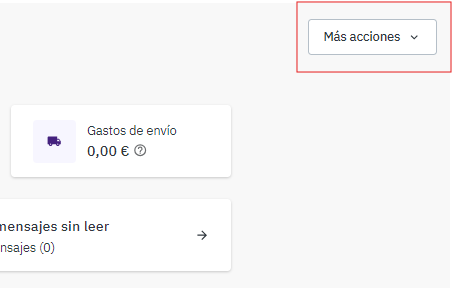
Click on the "More actions" button located on the right-hand side of the screen.
 |
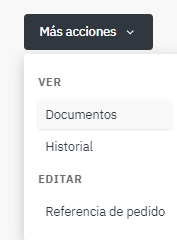
- In the dropdown, select the "Documents" option.
 |
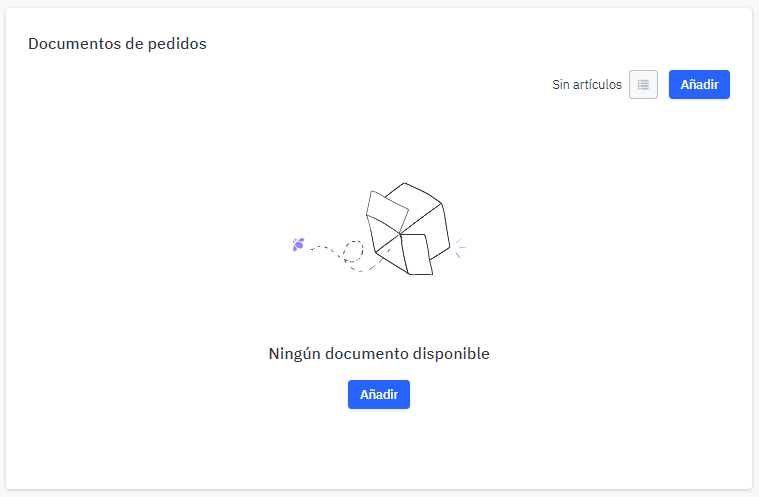
Click the blue "Add" button, available both on the right-hand side and in the center of the page.
 |
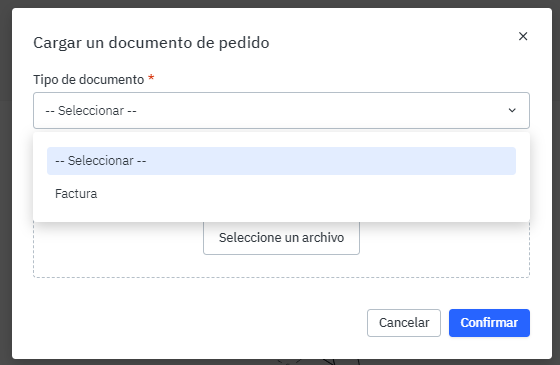
In the pop-up window, select "Invoice", attach the corresponding file, and click "Confirm".
 |
If you work with an automated system, note that it is also possible to upload invoices in the following ways:
Via integrator: Some integrators, such as Shoppingfeed, allow the automatic upload of invoices generated in your system.
Via API: If you want to fully automate the process, you can use the OR74 API. More information: Obtain API information