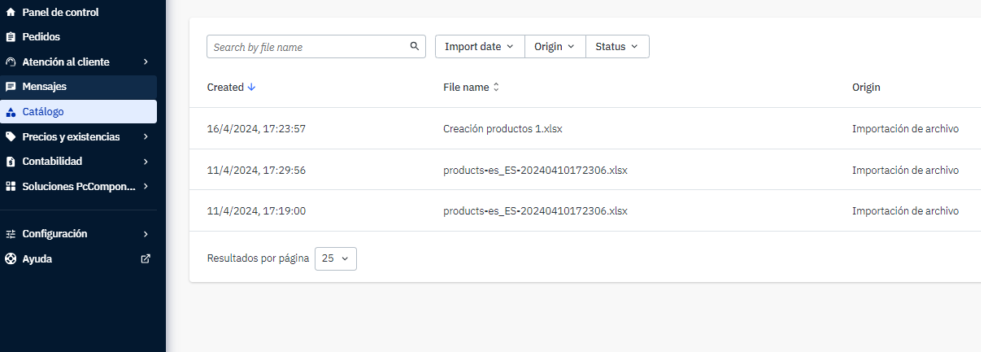
You can use the Mirakl assistant to import products from your own file and map its categories, fields and values to those used in the Marketplace.
This guide explains how to prepare the file, configure the mapping and import your products.
- Prepare the file
- Open the assistant
- Map the categories
- Map the attributes
- Map the values
- Review and import the products
- Check the result
Before using the assistant, prepare an XLSX file or a UTF-8 encoded CSV file.
The file must contain at least:
- EAN
- MPN
- Name
- Brand
- Category
- Description
- At least one main image
You can also include:
- Up to 8 additional images.
- Logistics data such as height, depth or weight.
For guidance on preparing titles, descriptions, images, identifiers and attributes, see Creating a perfect product sheet.
Prepare the HTML and images in advance by following How to add enriched content (A+) to a product page. When importing the products, tell the Cataloguing team which references contain this content.
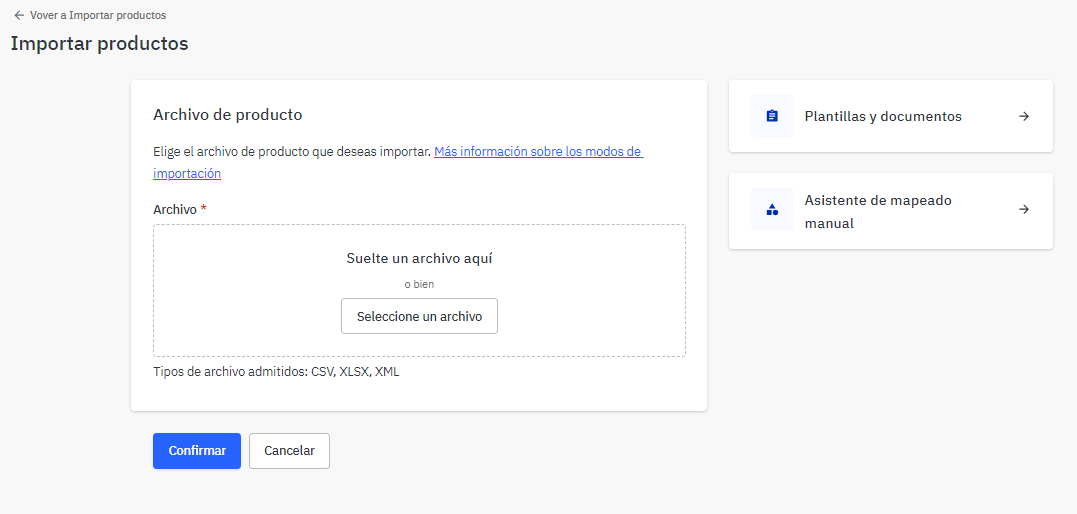
- In Mirakl, go to Catalog > Import products or open Import products.
- Select Manual mapping assistant in the right-hand panel.
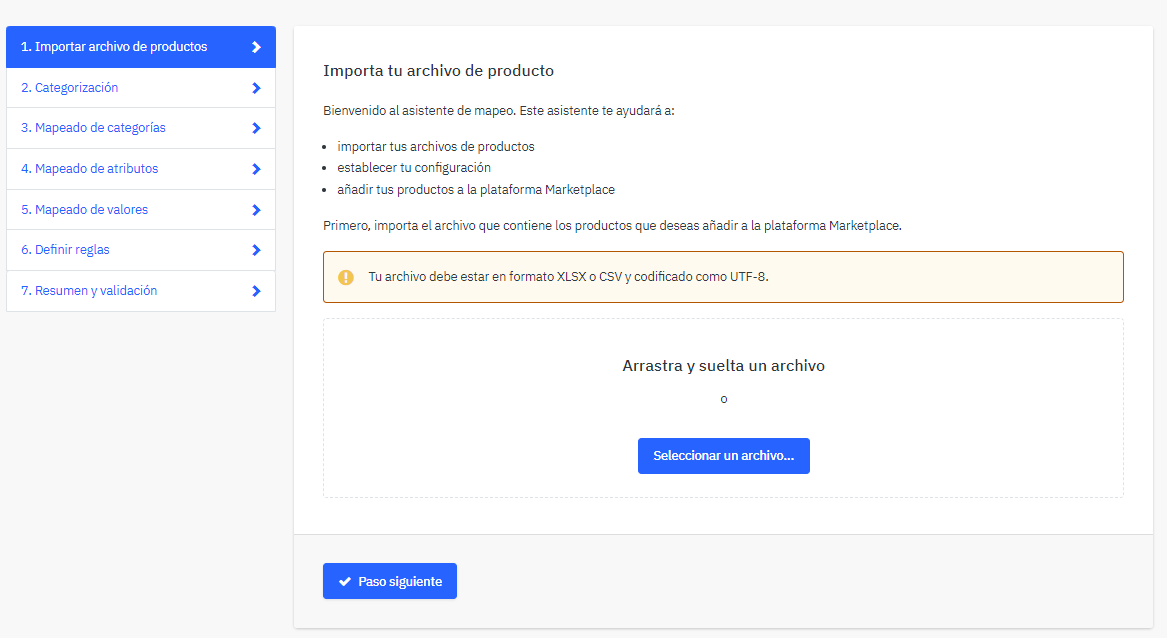
- Select Edit mapping with the assistant.
- Select Select a file or drag and drop your prepared file.
- Select Next step.
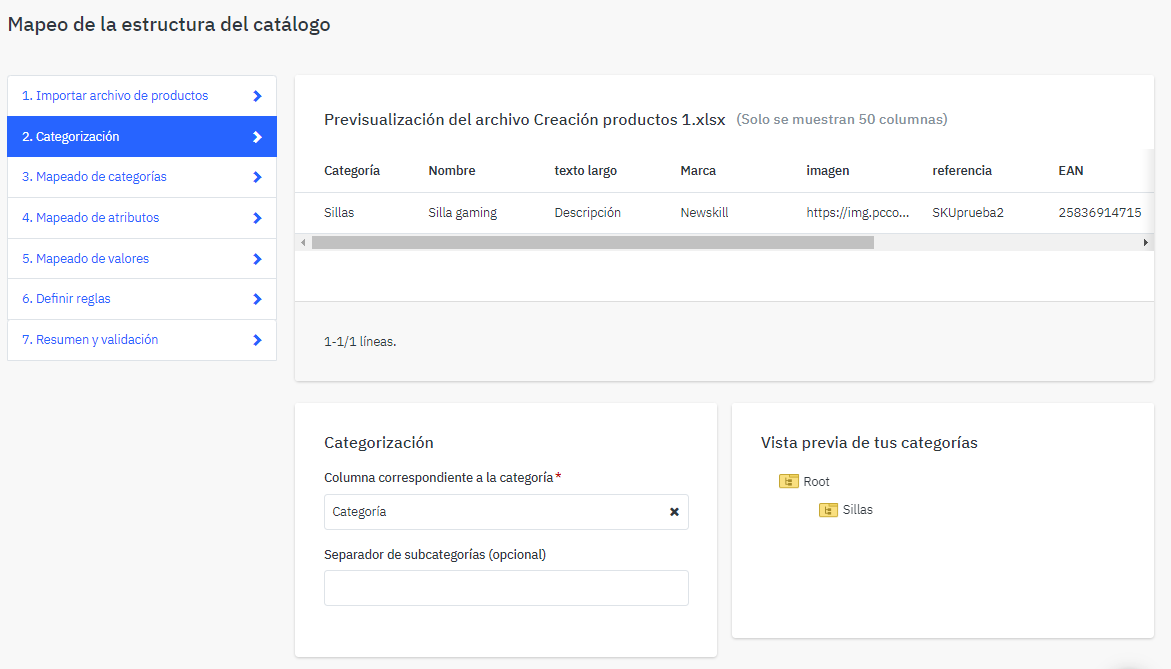
- Under Categorisation, select the column containing the product category. We recommend naming it Category.
- Select Next step.
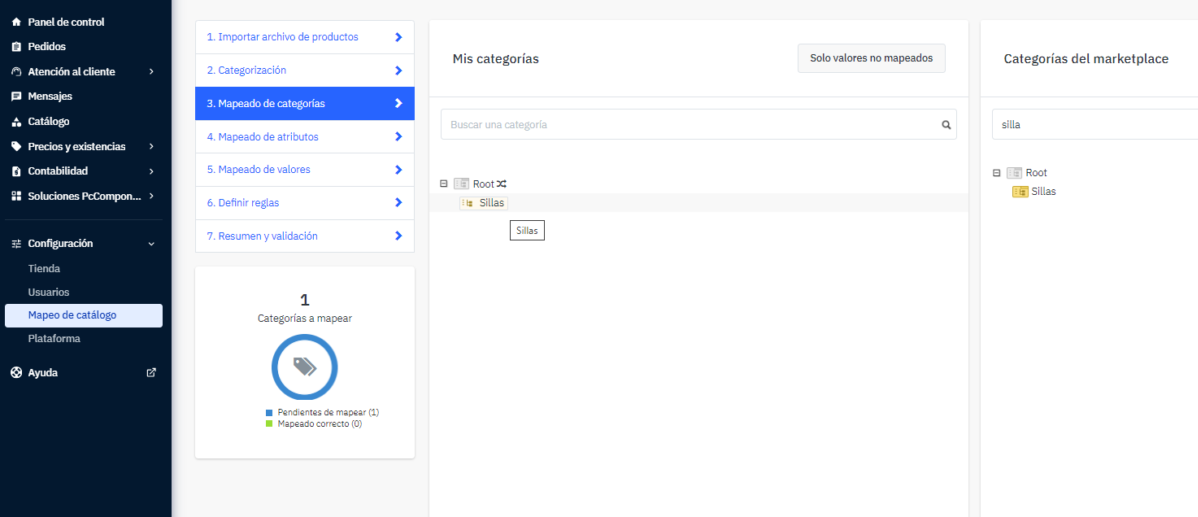
- Your categories will appear in the left-hand panel.
- Find the corresponding Marketplace category in the right-hand panel.
- Map each of your categories to its Marketplace equivalent.
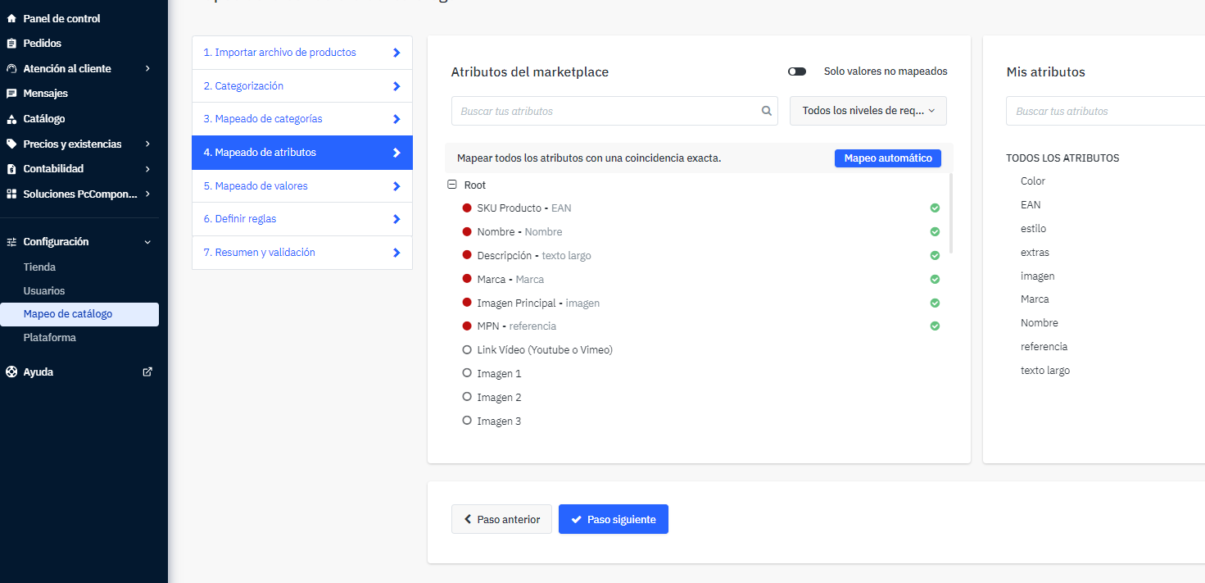
Match the fields in your file to the attributes required by the Marketplace.
- The attributes for the category appear on the left.
- The fields from your file appear on the right.
- Map each mandatory attribute to the field containing that information.
- Always map the EAN.
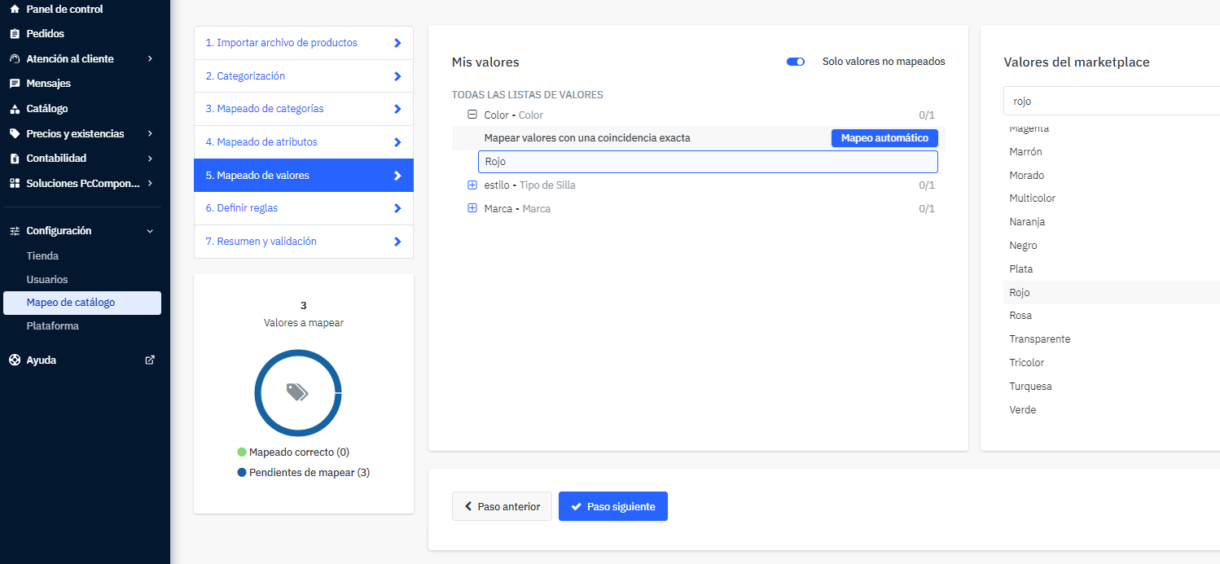
Match the values in your file to the values recognised by the Marketplace, such as brand, style or colour.
- Use the search field to find the corresponding value.
- Check especially that the brand already exists in the system.
- Map each value in your file to its equivalent.
The Attribute rules section will appear next.
You do not need to configure this feature. Select Next step.
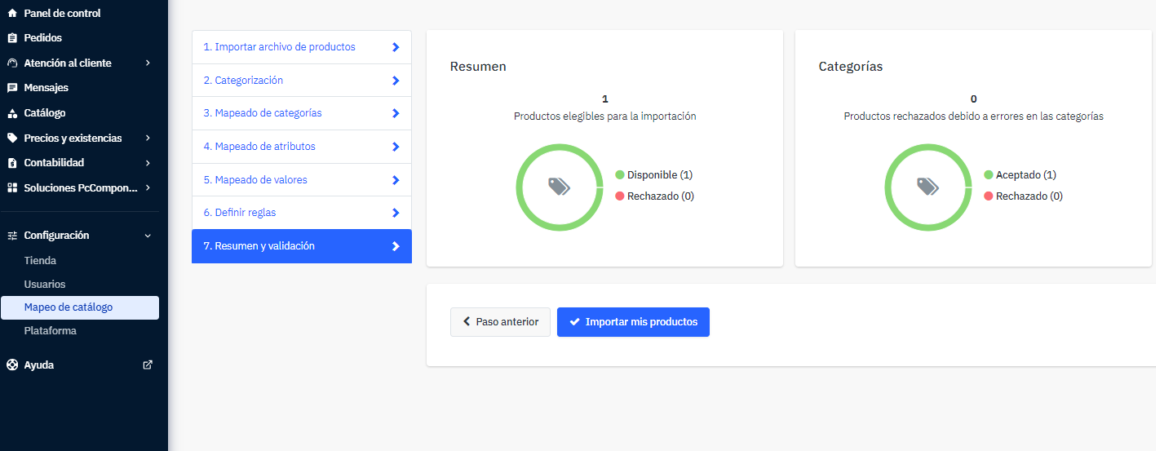
Before completing the import, Mirakl displays a summary of the mapping.
- Review the information displayed.
- Check any possible errors or products that may be rejected.
- If everything is correct, select Import my products.
Once the import has been submitted, open Product import monitoring to check the result.
Processing may take a few minutes. If an error occurs, select View details to see the reason and correct it.