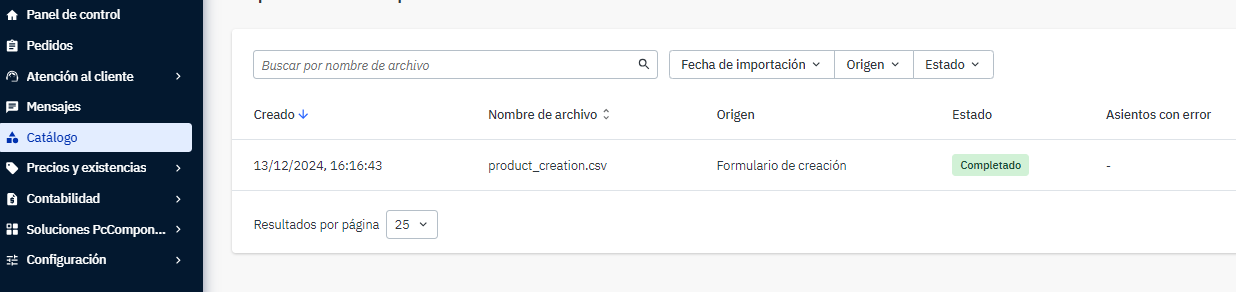
You can create a product directly in Mirakl by entering all the required information manually.
This method is particularly useful when you only need to create a small number of products. For larger catalogues, using a template or the import assistant may be more practical.
- Open manual product creation
- Select the category
- Complete the product information
- Create variants if required
- Configure the offer
- Submit the product for review
- Check the review status
In Mirakl, go to:
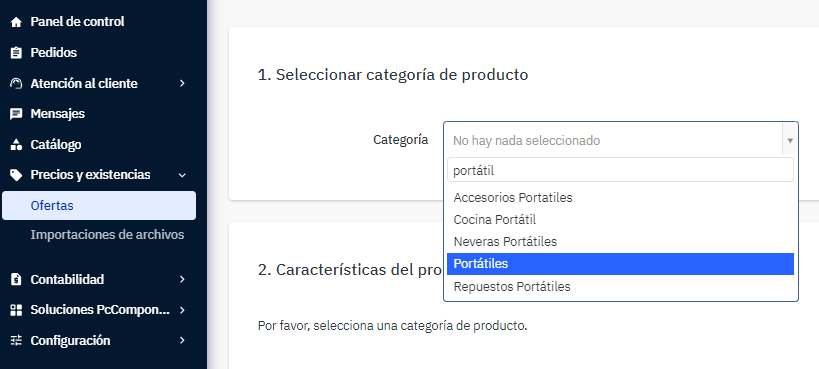
Price and stock > Offers > Add an offer > Create a product.
You can also open Create a product directly.
Select the category that corresponds to the product you want to create. You can use the search field to find it more easily.
Name
Use a clear and concise name with a maximum of 100 characters.
Description
Describe the product, its main features and technical specifications using official manufacturer information.
Enter the description in HTML according to the requirements in Creating a perfect product sheet.
If you need images, comparisons or multimedia content within the description, do not add it as a standard HTML description. Follow How to add enriched content (A+) to a product page.
Brand
Select the exact product brand. If it is not available, request its creation and provide the exact brand name together with its official website or product catalogue.
Video
The standard product video field accepts a short video hosted on YouTube.
Images
Add at least one clear product image. We recommend at least five images to complete the image carousel.
- Format: JPG.
- Resolution: 800 × 800 px.
- Background: white, without borders or excessive margins.
- Quality: clear, sharp and not pixelated.
The main image must show the product on its own against a white background, without added watermarks, frames or logos.
Product identifiers
- EAN: use this identifier whenever available.
- MPN: the original manufacturer reference for the product.
- Release date: complete this field if the product has not yet been released. Use YYYY-MM-DD.
- UPC, JAN or ISBN: may be used when applicable. Prioritise EAN when available.
Category-specific fields
Depending on the selected category, additional fields may appear, such as screen size, operating system or RAM. Complete only the fields that apply to the product.
If the same product is available in different colours or configurations, you can group these variants on the same product page.
- Open Select variant attributes.
- Select the attribute that differentiates the variants.
- Select Add a variant.
- Complete the product information for each variant.
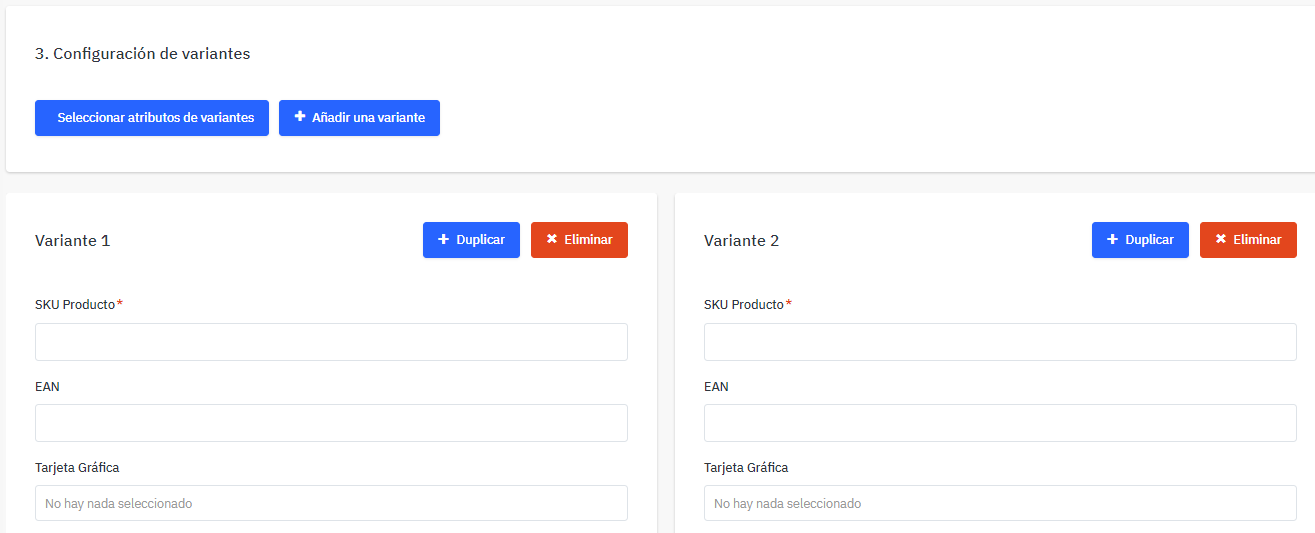
Customers will then be able to view and select the available variants from the same product page.
Once the product information is complete, configure the associated offer, including the corresponding price, stock and condition information.
See Offer creation: manually for this process.
Once all information is complete, select Submit for approval. The product will be sent to the Cataloguing team for review.
You can check the status from Catalog in Mirakl or from Product imports.