

Here we will show you how to manually upload an offer through the platform. This method is useful if you have a limited catalog. If, on the other hand, you manage many items, we recommend using the synchronization option via file.
Location: "Prices and stock" - "Offers" - Blue button "Add an offer".
URL: https://pccomponentes-prod.mirakl.net/mmp/shop/sell/product
In this section, you will have the option to search for an item within the search bar. Type the product you want to offer and click on the blue "Sell yours" button.
| Important: For a more precise search, you can enter our article code or the EAN. |
In the next window, the following fields will appear for you to fill out:
|
Important: When syncing via MPN, you must ALWAYS include the check mark followed by a hyphen "_". Example: sony_mpndeexample. Otherwise, the sync will not complete correctly. |
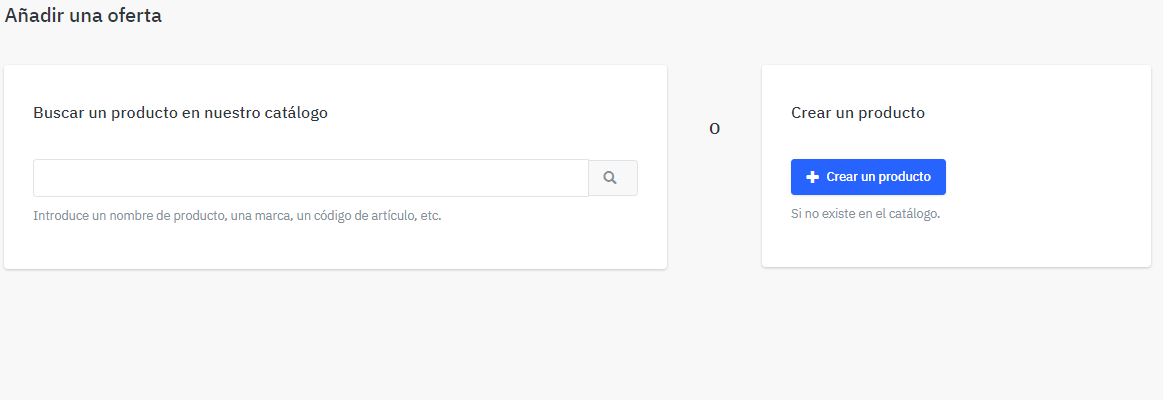 |
Offer SKU: enter your internal SKU. If left blank, the system will assign one automatically. This can be useful for your internal management or if you want to synchronize your offers using your own SKU in the future.
Condition: indicate the item’s condition. You can choose between new or our three available refurbished conditions.
Offer quantity: indicate how many units you have available in stock for sale.
| Important: We recommend setting a control stock to avoid stockouts and subsequent order rejections. Indicate slightly lower quantities than actual as a safety margin. |
Description: this field should be filled out only if the product is refurbished. It is not necessary for new items.
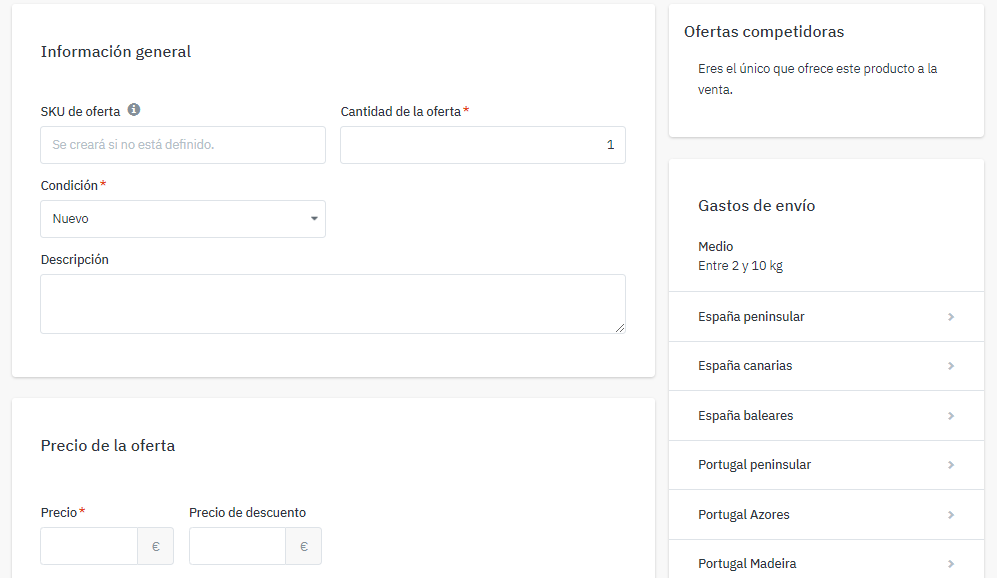 |
Price: enter the item’s price including VAT.
Discount price: enter the final discounted price, also including VAT.
Discount period: set the dates during which the reduced price will apply.
 |
Here you will see the information related to the configured shipping time for the corresponding logistics class.
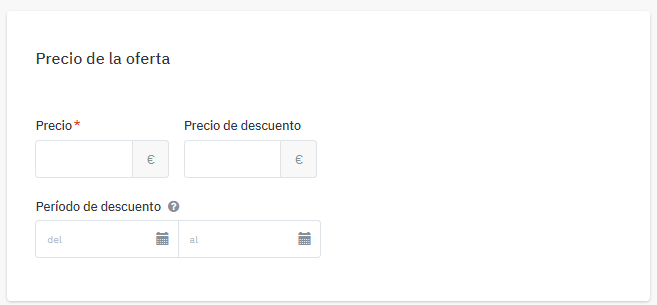
Availability: adjust the item’s availability date.
- Quantity alert: the system will send you an alert when stock reaches the quantity indicated in this field.
- Internal description: you can enter text visible only to you.
- Price information: this field does not need to be filled out.
- Logistics class: select which logistics class the product belongs to.
 |
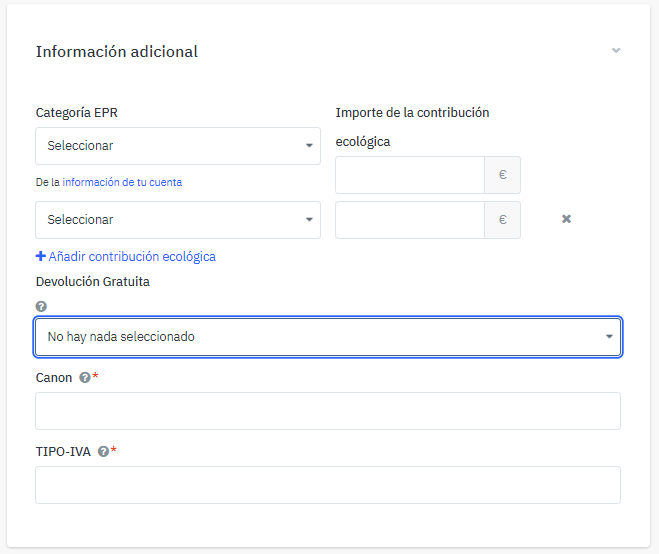
EPR category: this field is only filled in if you sell in France and/or Germany.
Eco contribution amount: also applicable only in France and Germany.
Fee: always enter the number “0”.
VAT type: always enter the number 21.
 |
Once all fields are completed, click the blue "Create offer" button.
| Important: in the right-hand column you can see a summary of competitors’ offers and shipping costs according to the logistics class you have configured. |