

Here we explain how to upload an offer using the file generated by the platform. This method is the most used for bulk offer synchronization, and it is the one we recommend if you do not have API automation.
Location: "Prices and stock" - "File imports".
URL: https://pccomponentes-prod.mirakl.net/mmp/shop/import
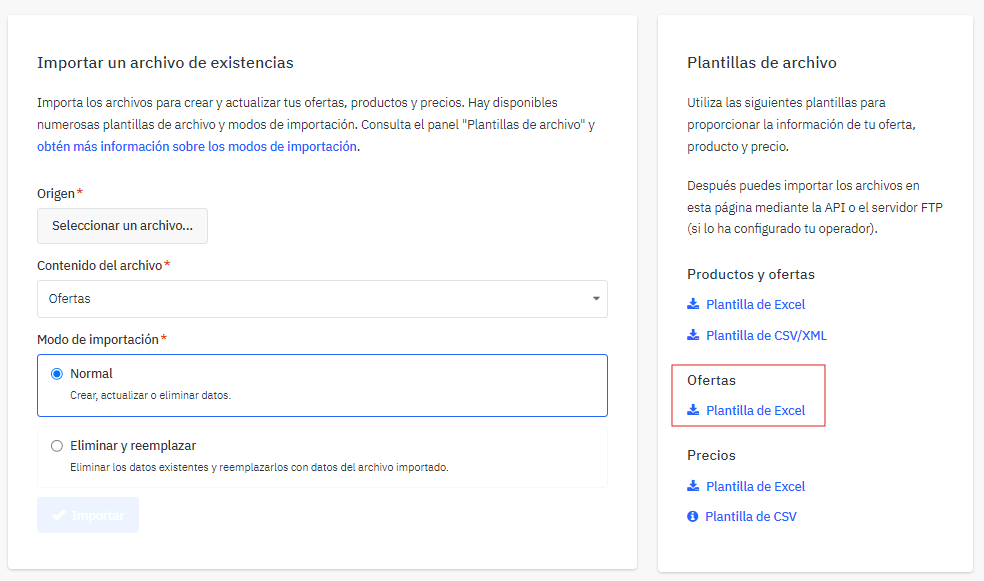
In this section you will see several options, such as uploading a file, selecting its specification, and choosing the import mode.
We will focus on downloading the template. To do this, click on "Excel template" within the "Offers" subsection.
 |
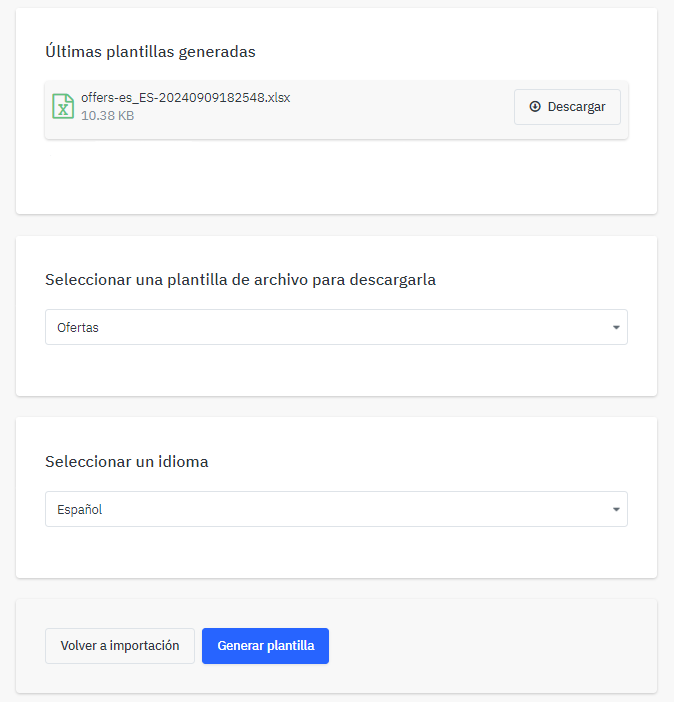
On the next screen you can choose the type of template and the language in which you want to download it.
| Important: to synchronize your catalog we recommend using only the "Offers" option and not "Products and offers", as the latter requires creating products first. |
Click the blue "Generate template" button. The download will appear in the "Latest generated templates" subsection.
 |
Open the downloaded file.
The pink fields are mandatory and the white ones are optional.
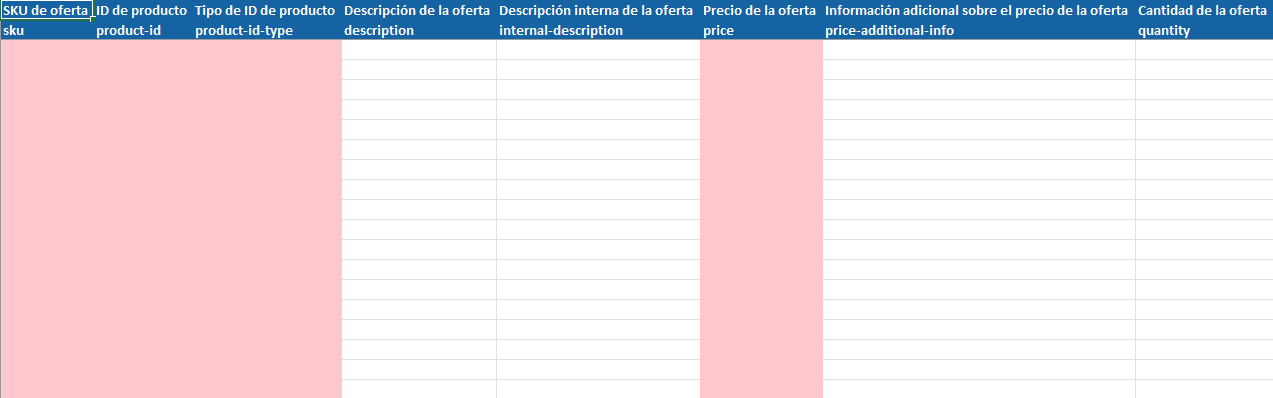 |
- Offer SKU: your internal identifier.
- Product ID: item identifier (we recommend using the EAN)
- Product ID type: select from the dropdown the identifier you will use for synchronization.
|
Important: When syncing via MPN, you must ALWAYS include the check mark followed by a hyphen "_". Example: sony_mpndeexample. Otherwise, the sync will not complete correctly. |
- Offer description: only fill this in if the product is refurbished (indicate its condition).
- Internal offer description: text visible only to you. Optional.
- Offer price: final price including VAT.
- Additional offer price information: optional field.
- Offer quantity: available stock.
- Minimum quantity alert: The system will notify you when stock reaches this quantity.
- Offer condition: indicate whether the product is new or refurbished (choose one of the three available refurbished states from the dropdown).
- Availability start date: format: 22/03/2025 0:00:00
- Availability end date: format: 22/03/2025 0:00:00
- Logistics class: select the corresponding class to set the shipping time.
- Favorite range: not used. Leave blank.
- Discount price: final discounted price (including VAT). The original price will appear crossed out.
- Discount start date: format: 22/03/2025 0:00:00
- Discount end date: format: 22/03/2025 0:00:00
- Update/Delete: use this field only if you are in Normal import mode. Leave it blank if you are simply uploading or updating offers.
- The following options are for uploading your files in relation to the circular economy. Only for France and Germany.
- In the following fields, fill in the information related to the GPSR.
- Fee: always enter the number “0”.
- VAT TYPE: always enter “21”.
| Important: regardless of product type, its real VAT rate or the sales channel, the "Fee" field must always be 0 and "VAT TYPE" must be 21. |
Go back to the initial screen: “File imports”.
In “File content” select “Offers” (it is usually selected by default).
In import mode, choose the one that best suits your needs. In most cases, we recommend using “Normal” mode.
- Normal: you can create, update, or delete offers, depending on what you have indicated in the “Update/Delete” field.
- Delete and replace: the uploaded file will delete all previous offers and replace them with the new ones. Useful for bulk changes or complete deletions.
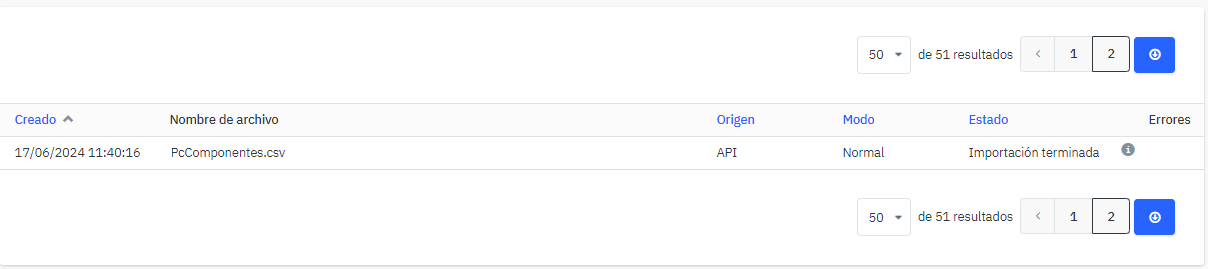
Once the file has been uploaded, you can monitor it from the "Monitor offer import" tab, where you will see the synchronization status.
On the right, you will see an information circle. Hovering over it will display a summary of the import.
If there are errors, you can download them from the "Errors" field, where the reason will be explained so you can correct it.
 |