

Once you have classified the refurbished item correctly, you must create or synchronise an offer and select the corresponding condition.
This article explains how to set up the offer manually, using a file or through an API integration. It also explains what information you must include in the offer description.
- Check whether the product already exists
- Set up an offer manually
- Set up an offer using a file or API
- Complete the offer description
- Items sold under the special scheme for used goods
- Review the synchronisation result
Before creating the offer, check whether the product already exists in the PcComponentes catalogue.
If the product already exists:
- Do not create a new product page.
- Search for the existing product using its EAN, MPN or product code.
- Add your offer to the existing product page.
- Select the actual condition of the unit you are going to sell.
If the product does not exist:
- You must create the product page first.
- The product page must contain the general characteristics of the model, regardless of whether the unit is new or refurbished.
- Once the product page has been created, add the offer and specify the condition of the unit.
You can create a refurbished item offer manually in Mirakl.
- Go to Price and stock > Offers.
- Click Add an offer.
- Search for the product using its EAN, MPN or product code.
- Select the product and click Sell yours.
-
In the Condition field, select the corresponding
condition:
- Like New.
- Very Good.
- Functional.
- Complete the Description field with the specific condition of the unit.
- Enter the stock, price, logistic class and the remaining offer information.
- Review the information and click Create offer.
If you manage several offers, you can synchronise them using the Mirakl offer file or an API integration.
To create offers using a file:
- Go to Price and stock > File imports.
- Download an Excel template for Offers.
- Complete the information required to identify the product and set up the offer.
- Enter the condition in the Offer state field.
- Complete the Offer description field.
- Upload the file and review the import result.
If the file or your API integration requires the numerical condition code, use the corresponding value:
| Offer condition | Code |
|---|---|
| New | 11 |
| Like New | 1 |
| Very Good | 2 |
| Functional | 3 |
Use the Description or Offer description field to explain the exact condition of the unit the customer will receive.
Include the following information when applicable:
- The origin of the item, such as a customer return or display unit.
- Marks, scratches, impacts or signs of wear.
- The size and location of any defects.
- The condition of the packaging.
- The accessories included.
- Compatible or non-original accessories.
- Any components that have been replaced.
- Battery health, when relevant.
- Any other characteristic that may affect the purchasing decision.
Examples:
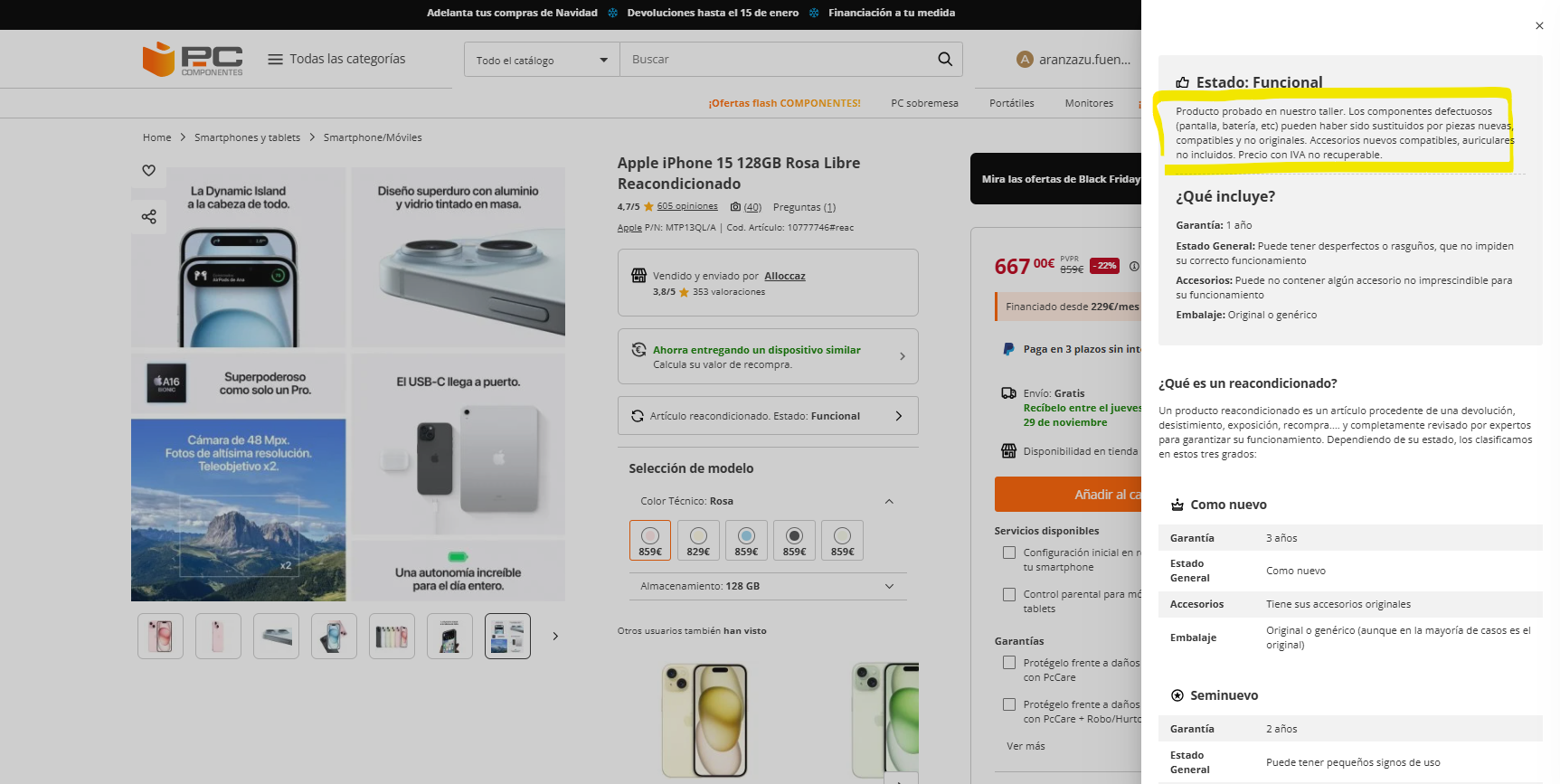
|
If the sale is subject to the special scheme for used goods, works of art, antiques and collectors’ items (REBU), clearly indicate this in the offer description.
For transactions subject to this scheme, the VAT amount is not shown separately on the invoice. It is understood to be included in the total transaction price.
After creating or importing the offer, check:
- That the offer is linked to the correct product.
- That the selected condition is correct.
- That the description matches the unit.
- That the price and stock are correct.
- That the lead times and logistic class are configured correctly.
If you used a file, go to Monitor offer imports to review the result.
If an error occurred, download the report, correct the indicated fields and import the file again.