

In this article we explain how to process refunds correctly from your Marketplace seller panel.
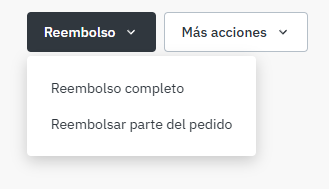
Open the order you want to refund and click the “Refund” button at the top right of the screen. The system will then show you two options:
- Full refund
- Refund part of the order
 |
Full refund
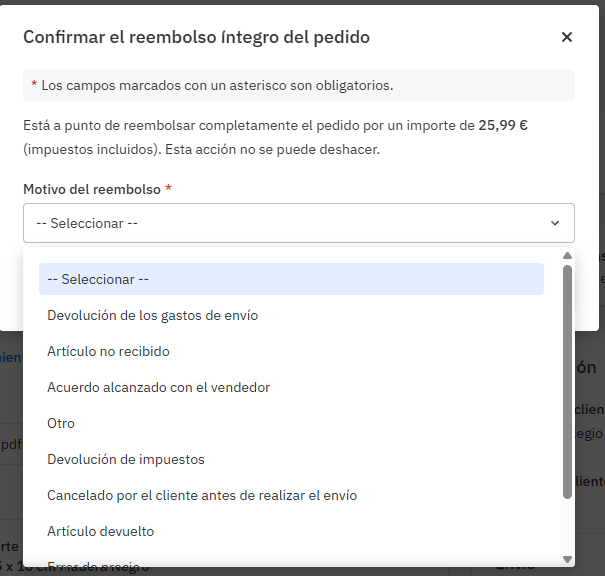
If you select “Full refund”, simply choose the reason for the refund and confirm. The order will automatically move to the “Closed” status and, within a few days, the customer will receive the full amount of the order.
Please remember that, due to our internal processes, it is important to always select the real reason for the refund.
 |
Partial refund
If you select “Refund part of the order”, the system will take you to a new page with additional options to break down the refund. There you can specify in more detail which part of the order needs to be refunded.
- Select the reason for the refund.
- In the “Quantity” field, enter the number of items to be refunded, not the amount. For example, if only one item is to be refunded, enter 1.
- You can choose whether you also want to refund the shipping costs or only the amount of the products.
The system will adjust the fields to remove unnecessary options and speed up the process. If the order had free shipping, the options related to shipping costs will appear in grey (blocked).
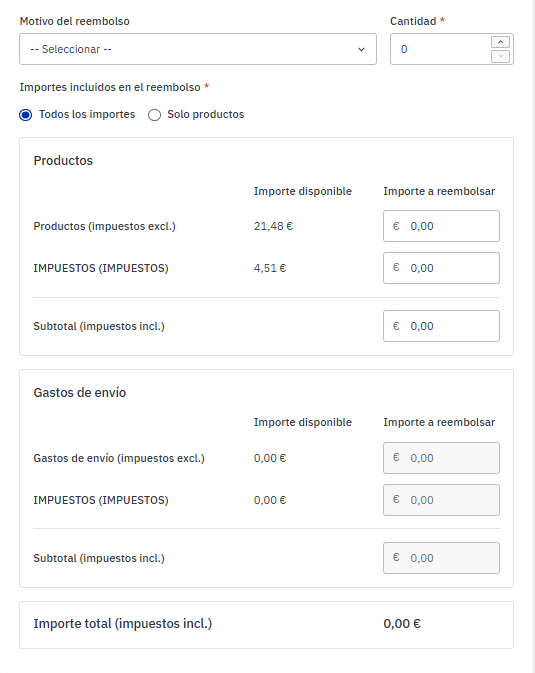 |
- Refunding shipping costs: if the order included shipping costs and you need to refund them, for example due to a delay in delivery, fill in only the field corresponding to transport.
- Price adjustment: if the refund is due to a price change (for example, within the last 30 days), fill in only the part relating to the product.
- VAT refund: in cases such as TAX FREE or reverse charge customers, fill in only the tax section and leave the rest blank.
Once you have completed the details, click on “Refund order”. The system will ask for a brief security confirmation and, once accepted, the refund will be processed correctly.